
How to Find the Original Video Source from TikTok, Instagram Reels & YouTube Shorts
Tired of uncredited reposts and cropped clips? Discover how to find the original movie, anime, creator, or broadcast behind viral TikToks, Reels, and YouTube Shorts.
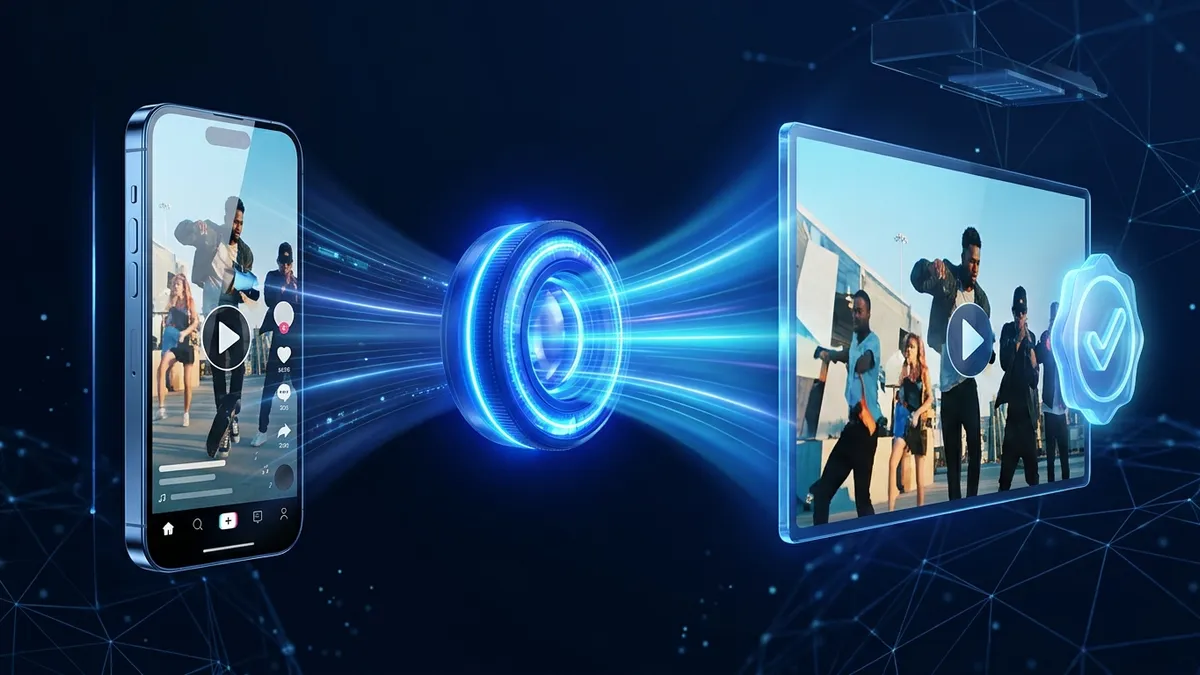
We have all been there: you are scrolling through TikTok, Instagram Reels, or YouTube Shorts and stumble across a captivating 20-second clip from a movie, documentary, podcast, or independent creator. You open the comments hoping to find the title or original creator—only to find hundreds of people asking “What movie is this?” or “Who is the original creator?” while the uploader stays silent to farm engagement.
Short-form vertical video platforms thrive on remixed, clipped, and reposted media. Unfortunately, the edits used to make clips go viral on mobile screens—such as 9:16 center-cropping, burned-in captions, color grading, and split-screen distractions—also make them harder to identify with basic image search tools.
Here is the complete playbook for tracing any TikTok, Instagram Reel, or YouTube Short back to its authentic original source.
Why Short-Form Vertical Clips Are Harder to Trace
When a re-uploader turns a widescreen YouTube video, TV episode, or film scene into a vertical short, they typically apply four modifications that confuse conventional search tools:
- Aggressive
9:16Cropping: Over 60% of the original16:9horizontal frame is sliced off the left and right edges, removing background context and channel watermarks. - Burned-In Captions & Stickers: Large animated subtitles (Hormozi-style captions), emojis, and “Wait for it…” banners are rendered directly over the center of the image.
- UI Clutter When Screen-Recording: If you take a screenshot directly inside the TikTok or Reels app, the username, caption text, heart/comment buttons, and music ticker cover up to 30% of the video.
- Speed & Pitch Shifts: Clips are sped up by
1.1x–1.25xand color-filtered with high contrast orLUTs to evade automated copyright detection.
To beat these alterations, you need a workflow that strips away mobile UI clutter and uses partial-image visual matching across multiple clean frames.
Step-by-Step: Tracing a TikTok, Reel, or Short to Its Original Source
Step 1: Obtain a Clean Copy of the Clip (Avoid Raw App Screenshots)
If you take a screenshot inside the TikTok, Instagram, or YouTube mobile app, the app’s interface icons (like the profile avatar, like button, and caption overlay) become part of the image you are searching. Search engines will often match the TikTok UI icons rather than the underlying video!
Instead:
- Save the video clip directly (or screen-record in full-screen “Clear Display” / “Clear Mode” by long-pressing the video on TikTok and selecting Clear display).
- Upload the saved video clip directly to ReverseVideoSearch.art so our frame extractor reads the raw video stream without app buttons.
Step 2: Scrub Between Subtitle Flashes
Most auto-generated captions on Reels and Shorts appear in 2-to-3-word bursts, leaving brief 100ms–300ms gaps between sentences or during scene cuts where no text is on screen.
- Use the frame scrubber on ReverseVideoSearch.art to pause right on a scene cut or sentence pause where the burned-in subtitle disappears.
- Select 3 to 5 keyframes from different camera angles in the clip (for example: one close-up of the main subject, one wide shot of the room or street, and one secondary angle).
Step 3: Check “Partial Matches” for the Original Widescreen (16:9) Video
When your search results load on the Results page, pay special attention to the Partial Matches and Full Matches tabs:
- Because a vertical
9:16clip is a cropped slice of a horizontal16:9frame, the original YouTube video, film still, or news broadcast will frequently appear under Partial Matches—where your vertical frame matches the center portion of a wider original image! - Check the matched domain names: links pointing to
youtube.com,vimeo.com,imdb.com,themoviedb.org, or verified creator channels will reveal the exact title, episode, or original uploader.
How to Handle “Sludge Content” & Split-Screen Videos
One of the most common trends on TikTok and Shorts is “sludge content”—where the top half of the screen plays a movie, podcast, or TV clip, and the bottom half plays unrelated mobile gameplay (Subway Surfers, GTA V ramp stunts, kinetic sand cutting, or hydraulic press videos).
| Challenge | Why It Confuses Basic Search | How to Solve It |
|---|---|---|
| 50/50 Split-Screen Gameplay | The search engine tries to match the combination of the movie AND the GTA V car stunt as a single image, returning only other TikTok reposts. | Crop the video or frame to include only the top half containing the target footage before searching, or pick a moment where the target clip expands to full screen. |
| Floating “Reaction” Head | A commentator’s face is overlaid in the bottom corner, altering the frame’s visual hash. | Select a frame where the reactor minimizes their camera, or focus on distinct upper-frame landmarks and entities. |
| Mirrored / Flipped Footage | The scene is horizontally inverted so automated copyright bots fail. | Look for backward text on signs or shirts; our neural entity detector still identifies faces and landmarks even when flipped. |
Identifying Movies, Anime, and TV Shows vs. Independent Creators
Depending on what kind of clip you are investigating, look for different signals in your reverse video search results:
1. Movies, TV Series, and Anime
- Look at Detected Entities first: Even if the exact frame was not used as a blog thumbnail, AI visual recognition identifies actors, character designs, and film sets, listing the movie or anime title directly in the Detected Entities panel.
- Check subtitle databases and fan wikis: Partial matches on sites like IMDb, Fandom wikis, Letterboxd, or MyAnimeList immediately confirm the season and episode number.
2. Podcasts and Interviews
- Match the studio backdrop and microphone setup: Podcast studios have unmistakable neon signs, acoustic panels, and desk layouts. Selecting a wide two-shot showing both the host and guest almost always matches the official full-length YouTube podcast episode.
3. Independent Creators & Viral UGC (User-Generated Content)
- Compare upload dates across platforms: A creator might post first on TikTok, only for repost accounts to re-upload the clip to Instagram Reels and X two days later. Sort through the matched source URLs to find the earliest timestamp and the profile whose bio and other videos match the person or style in the clip.
Frequently Asked Questions (FAQ)
Why does searching a TikTok screenshot on Google Images only show other TikToks?
Because a phone screenshot includes TikTok’s overlay UI, aspect ratio bars, and burned-in captions, basic image search matches those surface features against other TikTok screenshots. Extracting multiple clean keyframes without UI clutter using ReverseVideoSearch.art lets you match the underlying scene against widescreen YouTube videos, articles, and original uploads.
Can I find the original video if the audio was replaced with a trending TikTok sound?
Yes! Audio replacement is the #1 reason Shazam and audio-lookup tools fail on viral clips. Reverse video search ignores the swapped background music entirely and matches the visual keyframes of the footage itself.
What if the original creator deleted their video?
Even if the original uploader deleted their post, web search indices, news embeds, Reddit threads, and fan archives often retain cached thumbnails and references that reveal who originally created the clip and when it first went live.